
Breathedge 2 Save File Location & Settings Folder
Updated · Breathedge 2 Wiki
On Windows, Breathedge 2 saves are in %LOCALAPPDATA%\Breathedge2Game\Saved\SaveGames. Configuration is stored separately in %LOCALAPPDATA%\Breathedge2Game\Saved\Config\Windows.
Windows Steam edition. These directories were present on our installation on September 13, 2026; Steam cloud-save metadata and the developer’s settings instructions are linked below.
In this guide
Open the correct folder
| What you need | Windows path |
|---|---|
| Save files | %LOCALAPPDATA%\Breathedge2Game\Saved\SaveGames |
| Settings | %LOCALAPPDATA%\Breathedge2Game\Saved\Config\Windows |
The Steam cloud-save configuration lists .sav files under the SaveGames directory. LOCALAPPDATA resolves to your own Windows account’s local application-data folder.
These paths apply to the Windows Steam installation used for this site. They may differ on another store, operating system or compatibility layer.
Make a copy before experimenting
A backup preserves the files you copied; it does not guarantee that every game version can load them. Keep a copy of the original when comparing saves from different builds.
- Finish saving and close the game.
- Copy the SaveGames folder to a separate, dated backup folder.
- Keep the backup separate from the active game directory so you can identify the version and date it belongs to.
Reset settings without confusing them with saves
In the official FAQ’s September 4 reply, the developer identifies the Config\Windows directory as the place to reset broken graphics or resolution settings. This is separate from SaveGames.
The developer’s instruction removes the configuration files. Moving a backup copy out of the active location keeps the reset reversible. Do not remove the separate SaveGames directory when your goal is only to reset settings.
- Close Breathedge 2 completely.
- Back up the Config\Windows folder, then move that configuration folder out of its active location.
- Launch the game so it can recreate default settings, then set your graphics, audio and controls again.
Keep Steam Cloud and local copies distinct
Steam metadata confirms a cloud-save path, but cloud sync is not a dated backup history you control. Finish synchronization before changing machines and retain a separate local copy when investigating a problem.
The FAQ also covers specific startup errors. Include the exact error message and your installed version in a bug report instead of deleting unrelated files.
Sources and version notes
- RedRuins Softworks / Steam CommunityFAQ: developer replies about crashes and resetting settings
- Steam metadata / SteamCMD mirrorSteam app metadata: Windows cloud-save paths
Continue with a useful guide
 ▶ Video chapters
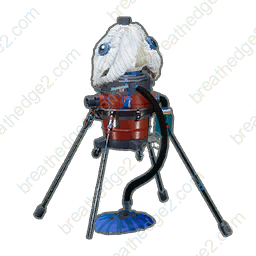
Oxygen Stations & Oxyworms: Repairs and Refills
Compare public stations, portable oxygen stations and worm nests. Prepare repair supplies, battery cells and a route with places to refill.
Read the guide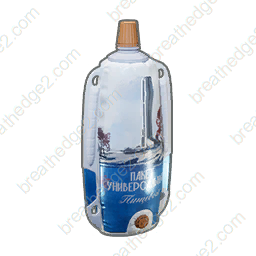 ▶ Video chapters
Repair Train: Kettle, Water & Cabin Supplies
Prepare train repairs and compare the kettle’s 20-water-per-Ice budget with the 2-Ice bottle recipe. Calculate drinking supplies across several batches.
Read the guide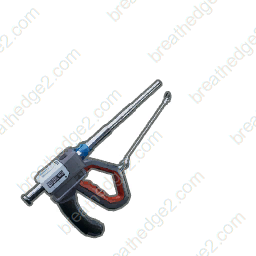
Gathering Tools: Materials, Repairs & Maintenance
Match each resource to the right tool, distinguish surface and deep deposits, and pack repair materials and Spraytron charges before a gathering trip.
Read the guide
Workbench & Wardrobe: Which Upgrades Fit?
Choose the station for a tool or suit upgrade, match parts to compatible slots and gather Cardboard, Foam and Knitted teddy bears for protection.
Read the guide